Understanding HTML Tags and Elements
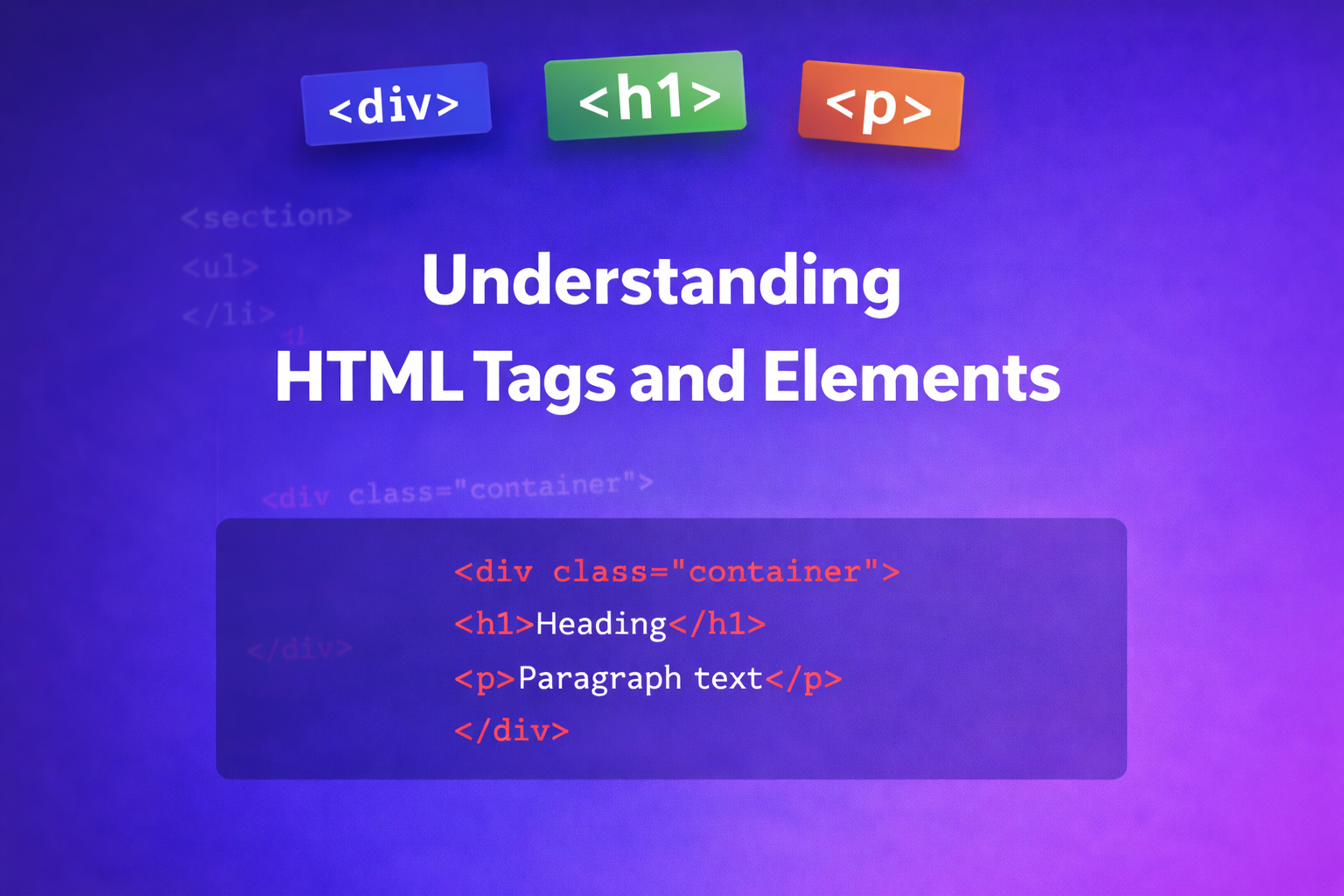
Whenever someone is starting their web development journey, the very first thing they will be taught is HTML. Yes, even in 2026, the AI Era, one has to learn HTML as their foundation knowledge.
So what is HTML?
HTML is HyperText Markup Language. In simple terms, it is the skeleton/structure of a webpage. Every website you've visited is built with HTML. Think of HTML as the structure of a building; it is not pretty, but without it, nothing stands.
And why do we use HTML?
Because browsers only understand 3 core languages:
HTML for structure
CSS for design
JavaScript for interactivity
Even the modern frameworks you have heard of, such as React, Vue, Angular, etc., eventually generate HTML that the browser understands. Without it, you cannot make a website. It tells the browser what is a heading, paragraph, image, link, and so on, so that the browser renders it properly.
What is an HTML tag?
An HTML tag is a keyword wrapped inside angle brackets that tells the browser what type of content you are creating. A tag comes in a pair.
For example:
<h1>Main title of the heading</h1>
Here,
<h1>- an opening tag,Main title of the heading - content,
</h1>- a closing tag with a forward slash
The browser reads HTML from top to bottom. If you don't add a closing tag, then after the content, everything will be rendered as a heading. So it is important to close the opening tag. It tells the browser that that type of tag is closed there.
What an HTML Element Means
An HTML element is the complete package: opening tag + content + closing tag.
When a designer or developer says "we need to add a paragraph element," they mean the whole thing - not just the tag.
For example:
<p>this is the content</p>
This entire thing is a paragraph element.
So what's the difference between a tag and an element?
Tag = just the markup syntax (
<p>or</p>)Element = the complete package (opening tag + content + closing tag)
Think of it like this: the tags are the container, but the element is the container WITH what's inside it.
Self-Closing (Void) Elements
As we discussed above, HTML tags come in pairs, but there are some tags that are self-closing in HTML because there is no content inside. Those are called void elements. In simple language, self-closing tags don't need a closing tag.
img
input
br
hr
meta
link
These are the self-closing tags. If you see <img> as <img />, then it is an old XHTML tag. HTML5 doesn't need it. <img> is fine.
Block-Level vs Inline Elements
This is how the elements behave on a page. There are 2 types of HTML elements:
block-level elements
inline elements
Block-level elements:
These elements:
take full width space
start on a new line
stack one below the other
Examples: <header>, <footer>, <main>, <section>, <p>, <h1> to <h6>, <ul>, <ol>, <li>, etc.
Try typing in a .html file:
<p>this is first paragraph</p>
<ul>
    <li>List Item 1</li>
    <li>List Item 2</li>
    <li>List Item 3</li>
</ul>
You will see it is rendering the first paragraph element and then the ul element.
Inline elements
These elements:
take the space as needed
stay on the same line
Examples: <span>, <a>, <strong>, <em>, <img>, <code>
Try typing:
<span>this is an inline element</span>
<a href="https://google.com">Visit Google</a>
These will stay on the same line.
Note: You cannot put block elements inside inline elements; it's invalid. But you can put inline elements inside block elements. You can change the behavior of these elements, but that's another topic.
Commonly Used HTML Tags
Document structure
<html>
<head>
<body>
These are mandatory. Browsers may try to fix missing ones, but relying on that is a bad habit.
Headings
<h1> to <h6>
<h1>is usually the main heading (one per page)Don’t skip levels just for size
Headings matter for SEO and accessibility
Text elements
<p>→ paragraph<span>→ inline wrapper<strong>→ importance (not just bold)<em>→ emphasis (not just italic)
Links and images
<a href="...">Link</a>
<img src="..." alt="...">
<a>must havehref<img>must havealt(this is required in real-world development)
Lists
<ul>→ unordered list<ol>→ ordered list<li>→ list item
Used for:
navigation menus
features
steps
structured content
Containers (very important)
<div>
<section>
<article>
<header>
<footer>
<div>→ generic container<section>→ thematic grouping<article>→ independent content
Whenever possible, use semantic tags. Accessibility and SEO depend on this in 2026.
Basic example
<!DOCTYPE html>
<html>
<head>
    <title>My First Page</title>
</head>
<body>
    <h1>Hello World</h1>
    <p>This is a paragraph with <strong>bold text</strong>.</p>
    <a href="https://example.com">Click here</a>
</body>
</html>
HTML is easy to learn, but takes discipline to write well. Many beginners create "div soup"; everything is a <div> with no semantic meaning. Use proper tags (<article>, <nav>, <header>) because they help screen readers, SEO, and code maintainability.
If you found this blog helpful, give it a like and share it with other beginners learning HTML.
Happy coding!


